
Page enhance
Enhance sharpens soft, low-resolution pages in the built-in reader, which helps most on a large screen. It is off until a reader turns it on. Library files are never modified.
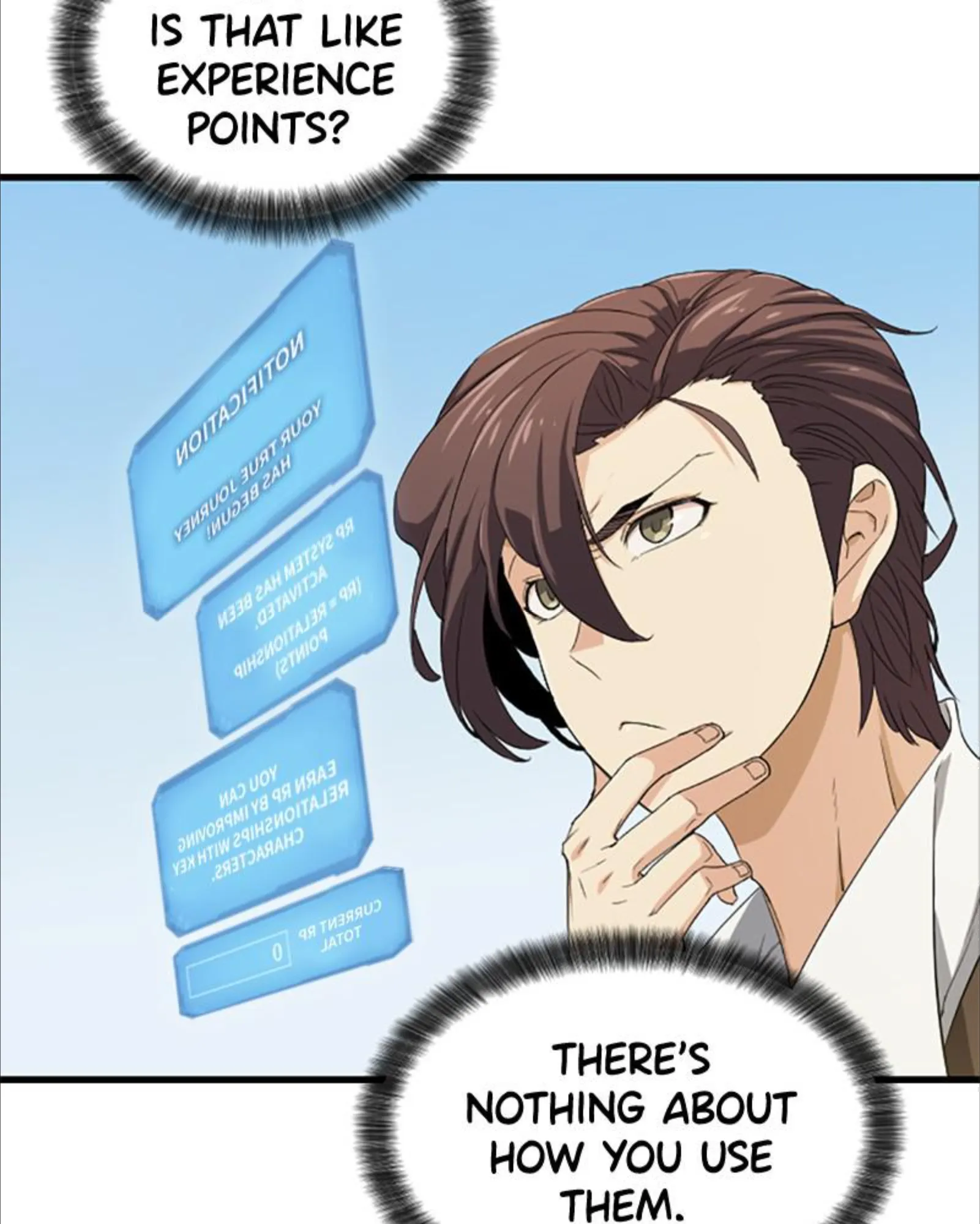 Normal
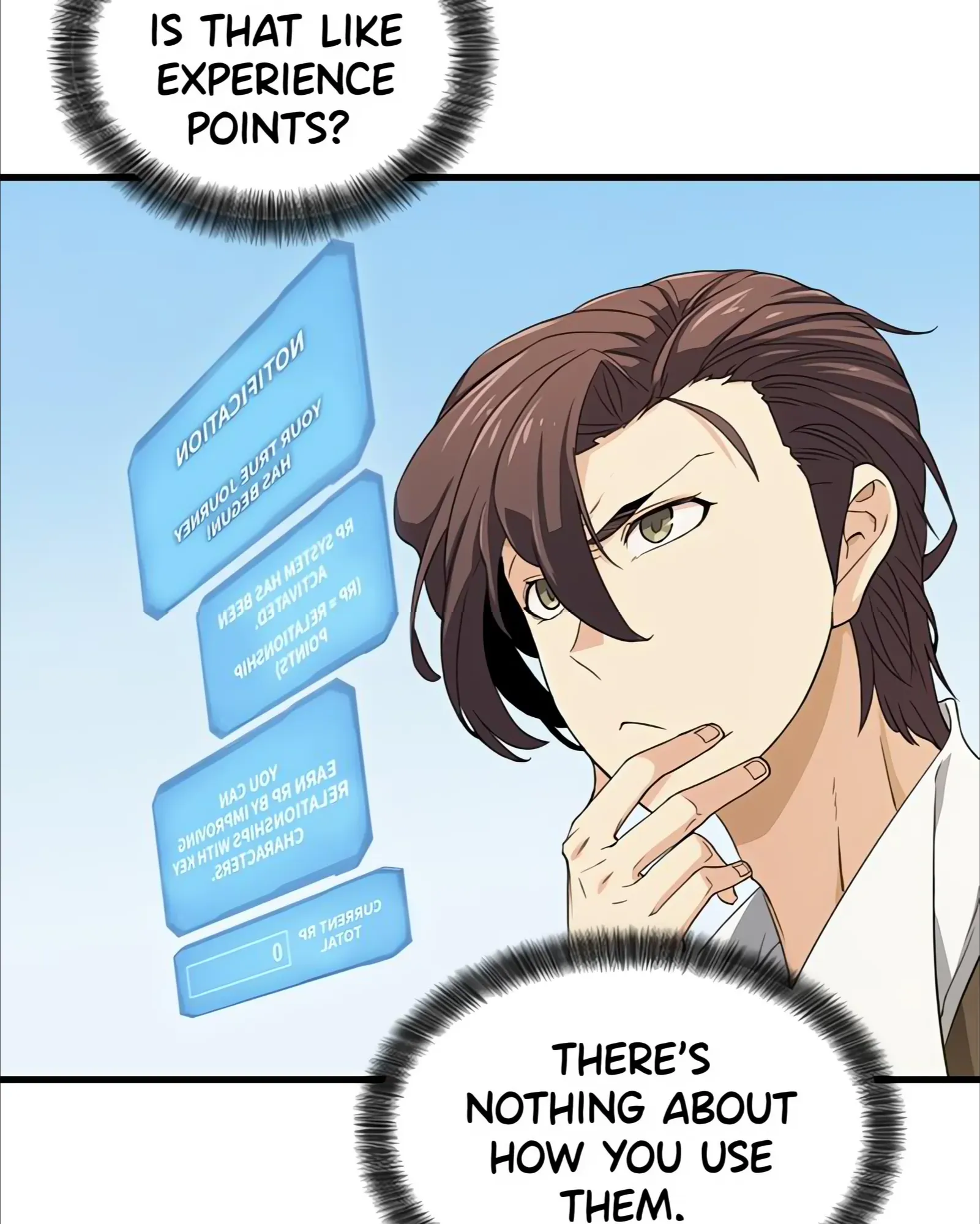 Upscaled
Two tiers, one setting
Section titled “Two tiers, one setting”- Browser methods (Light, Balanced, Strong) run Anime4K shaders on the reader’s own device. They are always available and need WebGL2.
- Server methods (Maki 2x, Real-ESRGAN, SPAN-S) run ONNX models on the Maki server. They appear in the Method list under “On the server” once an admin has enabled them, and stay disabled, marked Downloading or Not available, until the model is ready. Maki 2x is Maki’s own model, trained to look like Real-ESRGAN at about a third of the cost, and is the default and the recommended one. Real-ESRGAN (animevideov3) gives the crispest line art and flattens screentone. SPAN-S is IllustrationJaNai’s sharp model. The settings page marks each one’s speed and quality.
A greyscale page stays greyscale whichever method draws it.
Turning it on
Section titled “Turning it on”In the reader’s settings panel, open Enhance, set it to Off, Auto or Always and pick a Method. The same two fields are in reading profiles and in per-series overrides, so they follow the usual order: series override, pinned profile, type profile, your default.
Auto enhances a page when it is shown at least 1.2 times larger than its source on either side, or when the page looks soft and blurry at the size it is shown. A sharp page in a small window stays plain, and so does a large page that is slightly soft at full size but sharp on screen.
Hold H or the toolbar’s compare button to see the original page.
Don’t enhance skips chapters by file quality. Tick any of Volume, Official, Scanlator, Aggregator or Unknown, and chapters whose file has that tier show the plain page and never reach the server queue. It starts with Volume ticked. With nothing ticked, the placeholder reads “Every quality is enhanced”. The tiers are described under Source tiers.
Server progress
Section titled “Server progress”While a server method is still working on the page on screen, the fallback shows meanwhile. With the reader’s bars hidden, a thin line along the bottom edge shows the progress. With the bars showing, the compare button and the page bar show it instead, and the page bar marks the pages ahead that are already upscaled in light grey, like the buffered part of a video.
Upscale progress in the Enhance settings picks what shows while the bars are hidden: Line (the default), Detailed (a pill that says whether the page is waiting, upscaling or loading) or Hidden.
Working ahead
Section titled “Working ahead”Paged mode enhances the pages in the preload window. Continuous mode sizes its range by pixels instead of pages, so a chapter of many short slices is enhanced well down the strip and one of a few very tall slices only a page or two ahead, within what the device can hold. Near a chapter’s end, a server method also queues the next chapter’s first pages, so it opens already upscaled.
Pages you have paged past drop out of the server queue, and a page still running is abandoned when you skip ahead or switch chapter.
Whole chapter, off by default and shown only for server methods, keeps the server upscaling every page of the open chapter, ahead first and then behind, so fast reading doesn’t catch up with it, and then carries straight on through the whole next chapter, so it opens already upscaled. A next chapter whose quality tier your settings skip (volumes, by default) is left alone. Leaving the chapter cancels the rest.
An admin can also turn on Prepare chapters ahead, which upscales the next chapter of the series you are reading while nobody is reading, so they open sharp on any device. It only covers series set to Reading with Enhance on Always and a server model, and stops the moment someone opens a page. See Page enhance (upscaling).
Fallbacks
Section titled “Fallbacks”A server method shows a browser method on this device while its page is not ready. The default is Balanced. Choose Light, Strong or None (the plain page) under “While the server works” in the reader settings, or “Fallback” in a reading profile.
The fallback stays on for good when the reader is offline, the admin tier is off or the model is not downloaded. A device without WebGL2 shows plain pages, and the browser methods read “Not supported on this device”.
Server upscaling (admins)
Section titled “Server upscaling (admins)”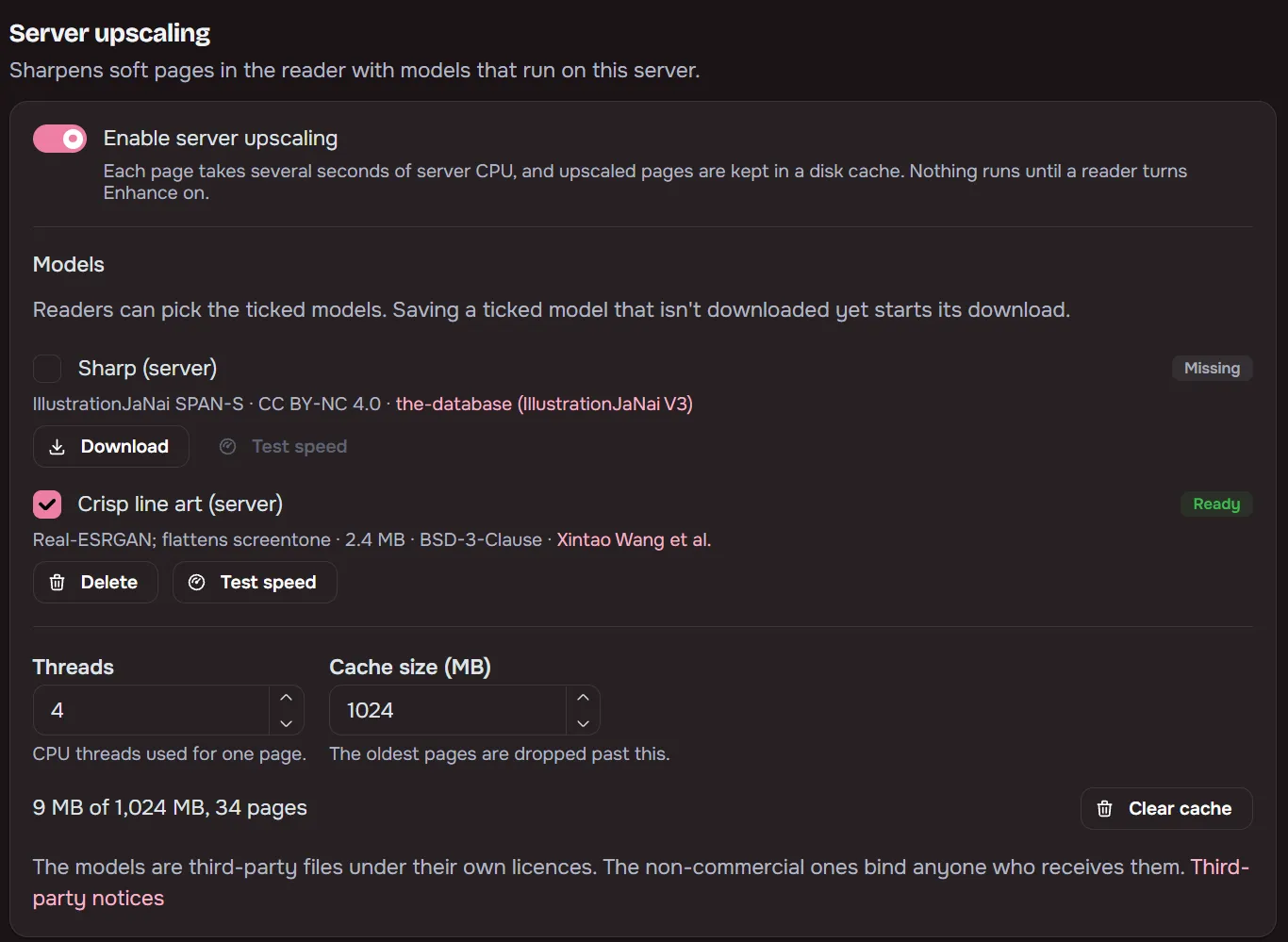
Settings, Library, Server upscaling has:
- the on switch and the list of models readers may use
- Threads
- JPEG XL for colour pages, which saves upscaled colour pages as JPEG XL (WebP for browsers that cannot show it)
- the cache cap (1 GB by default) and Clear cache
- Test speed, which times one built-in sample page
- Prepare chapters ahead, off by default
Models are not bundled. Maki downloads each one from a Maki GitHub release when an admin ticks it and saves, or from its Download button, and checks its SHA-256. Some are licensed for non-commercial use only; the per-model licences are in THIRD_PARTY_NOTICES.md.
A page takes seconds of server CPU, a few times longer on a NAS, so the queue is capped per reader and shared fairly between readers. Each page is split into small tiles that run in parallel, and flat areas skip the model. Pages over 16 megapixels are never upscaled on the server, since one can take around 2 GB of memory. The reader uses the browser method for those pages instead.
Colour pages saved with a wide-gamut colour profile, such as Adobe RGB, are converted to sRGB before upscaling.
Privacy
Section titled “Privacy”Pages never leave your server or your device. The only outside traffic is model downloads from GitHub, and those start only when an admin asks for a model. Upscaled pages are a disposable cache under the config folder, oldest-used dropped first, and they can be cleared at any time.